
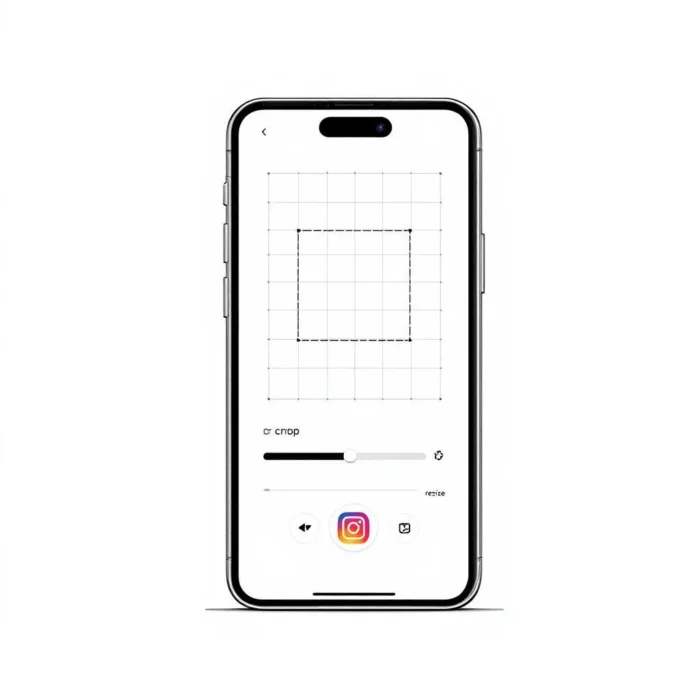
Have you ever uploaded a photo to your Instagram Story only to find it awkwardly cropped, blurry, or displaying with unsightly black borders? You’re not alone in this frustration. Instagram Stories require specific dimensions of 1080 x 1920 pixels with a 9:16 aspect ratio to display properly, and getting this wrong can make even the most beautiful photos look unprofessional.
In today’s social media landscape, Instagram Stories have become one of the most powerful tools for engagement. A study found that almost 58% of people said they’ve become more interested in a brand or product after seeing it in an Instagram Story. This makes it crucial for content creators, businesses, and everyday users to master the art of properly sized Story content.
Whether you’re a small business owner trying to showcase your products, an influencer building your personal brand, or simply someone who wants their vacation photos to look pristine, this comprehensive guide will walk you through the best free online tools to resize your photos for Instagram Stories. We’ll explore everything from basic resizing platforms to advanced editing features, ensuring you never have to deal with poorly formatted Stories again.

The good news? You don’t need expensive software or technical expertise to create perfectly sized Instagram Stories. With the right free online tools and a bit of know-how, you can transform any photo into a stunning, professional-looking Story that captures your audience’s attention and keeps them engaged.
Understanding Instagram Stories Dimensions and Requirements
Before diving into the tools, it’s essential to understand exactly what Instagram expects from your Story content. The Instagram story dimensions are 1080px by 1920px, which is an aspect ratio of 9:16. This vertical format is specifically designed to fill the entire screen of a smartphone, creating an immersive viewing experience.
The Technical Specifications
For images, Instagram accepts JPG and PNG file formats with a maximum size of up to 30MB, while videos can be MP4 or MOV files with a maximum size of up to 4GB. The platform displays content at 72 PPI (pixels per inch), which is the standard resolution for web images that balances quality with file size.
Understanding the “safe zone” is equally important for creating effective Stories. The Instagram Story safe zone refers to the area where your content won’t be obstructed by Instagram’s interface elements, accounting for the top and bottom 250 pixels where elements like your profile image and swipe-up features appear. This means your usable content area is approximately 1080 x 1420 pixels.
Why Proper Sizing Matters
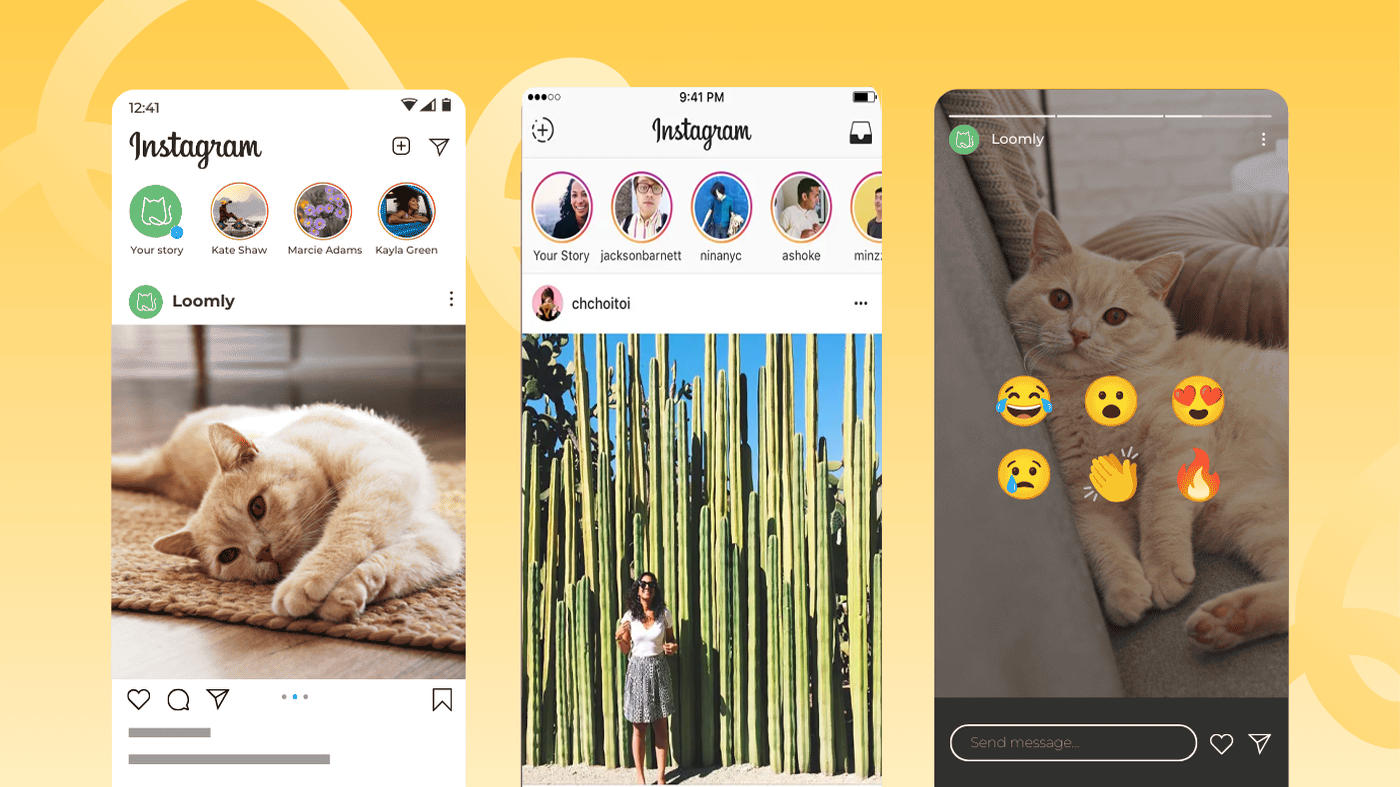
When you upload content that doesn’t match Instagram’s specifications, several issues can occur. If you upload a photo or video to your Instagram story that doesn’t fit the required dimensions, you can risk a loss in quality or have part of your story cropped out. Instagram automatically adjusts non-conforming content, which often results in:
- Unwanted cropping that cuts off important elements
- Reduced image quality due to compression
- Black borders or empty space around your content
- Unprofessional appearance that can hurt your brand image
The impact on engagement can be significant. Quality signals credibility, and if your Stories look sloppy or poorly cropped, it conveys that your brand doesn’t value attention to detail. For businesses and content creators, this attention to detail can make the difference between gaining or losing followers.
Top Free Online Tools for Resizing Instagram Stories
Adobe Express: Professional Quality Made Simple
Adobe Express offers a comprehensive image resizer that allows you to adjust and crop your images with free online photo cropper and photo resizer tools. This platform stands out for its user-friendly interface and professional-grade features.
Key Features:
- Pre-set Instagram Story dimensions
- Drag-and-drop functionality
- Advanced editing capabilities including filters and design assets
- Templates specifically designed for Instagram Stories
- No watermarks on free version
How to Use:
- Visit Adobe Express and select the image resizer tool
- Upload your JPG or PNG image
- Choose the Instagram Stories preset (1080 x 1920)
- Make any additional edits using the built-in tools
- Download your perfectly sized image
Adobe Express goes beyond simple resizing, offering text overlays, graphic elements, and design templates that can transform your basic photos into engaging Story content.
Canva: The All-in-One Design Platform
Canva’s photo resizer provides a quick and easy way to adjust an image’s dimensions without sacrificing quality. This platform has become synonymous with accessible design tools, making it perfect for both beginners and experienced creators.
Standout Features:
- Extensive template library for Instagram Stories
- Bulk resizing capabilities for multiple images
- Collaborative features for team projects
- Stock photo integration
- Animation capabilities for dynamic Stories
User Experience: The platform’s strength lies in its intuitive design process. You can start with a blank Instagram Story canvas or choose from thousands of professionally designed templates. The drag-and-drop interface makes it simple to add text, graphics, and effects while maintaining the correct dimensions.
Fotor: Quality-Focused Resizing
Fotor’s Instagram photo resizer tool resizes your photos while preserving their original quality and details. This platform particularly excels at maintaining image clarity during the resizing process.
Notable Features:
- Advanced quality preservation algorithms
- Background removal capabilities
- Instagram Story templates
- Batch processing options
- Cross-platform compatibility
Fotor’s strength lies in its focus on image quality. The platform uses sophisticated algorithms to ensure that your resized images maintain their sharpness and detail, which is crucial for professional-looking Stories.
Photoroom: AI-Powered Precision
Photoroom’s AI tools create eye-catching visuals effortlessly, allowing you to quickly adjust your photos to fit the required formats while saving time and effort. This platform leverages artificial intelligence to streamline the resizing process.
AI-Enhanced Features:
- Automatic background removal
- Smart resizing that preserves important elements
- Text and sticker integration
- Custom background creation
- Batch editing capabilities
The AI-powered approach means Photoroom can intelligently identify the focal points of your images and resize them accordingly, reducing the risk of accidentally cropping out important elements.
Instasize: Mobile-Optimized Simplicity
Instasize allows you to quickly resize images and photos, reducing file sizes and readying them for social sharing in seconds. This platform is particularly well-suited for users who frequently work on mobile devices.
Mobile-First Features:
- Optimized for smartphone use
- Quick sharing integration
- Image expansion capabilities
- Background blur effects
- One-tap resizing presets
Step-by-Step Guide: Resizing Your Photos for Instagram Stories
Method 1: Using Adobe Express
Step 1: Access the Platform Navigate to Adobe Express and select the image resize tool. You can use this directly in your browser without downloading any software.
Step 2: Upload Your Image Click “Upload your image” or drag and drop your file into the designated area. The platform accepts JPG, PNG, and other common image formats.
Step 3: Select Instagram Story Preset Choose the Instagram Stories option from the preset sizes. This automatically sets your image to 1080 x 1920 pixels with the correct 9:16 aspect ratio.
Step 4: Adjust and Edit Position your image within the frame, ensuring important elements fall within the safe zone. Use the platform’s editing tools to enhance your image if needed.
Step 5: Download Save your resized image in your preferred format and quality setting.
Method 2: Using Canva
Step 1: Create New Design Start by selecting “Instagram Story” from Canva’s design options, which automatically sets up the correct dimensions.
Step 2: Upload Your Photo Use the upload function to add your image to Canva’s media library.
Step 3: Add Image to Canvas Drag your uploaded image onto the Instagram Story canvas and resize it to fit properly.
Step 4: Enhance Your Story Take advantage of Canva’s extensive design elements to add text, graphics, or effects that make your Story more engaging.
Step 5: Export Download your finished Story in PNG or JPG format, ready for uploading to Instagram.
Pro Tips for Better Results
Maintain Aspect Ratios: When manually adjusting images, always hold the shift key (or equivalent) to maintain proportions and avoid distortion.
Consider the Safe Zone: Keep important text and focal points away from the top and bottom edges where Instagram’s interface elements appear.
Optimize File Size: While Instagram accepts files up to 30MB for images, smaller files load faster and provide a better user experience.
Test on Multiple Devices: Preview how your resized Stories look on different screen sizes to ensure consistency.
Advanced Features and Creative Options
Background Manipulation
Many of these tools offer sophisticated background editing capabilities that go beyond simple resizing. Photoroom gets rid of cluttered backgrounds and allows you to change the background to something more pleasing to the eye, which is particularly useful when your original photo doesn’t fit the vertical Story format.
Background Extension Techniques:
- Blur the original background and extend it to fill the Story dimensions
- Add complementary colors or gradients
- Use AI-powered background generation
- Create branded backgrounds that reinforce your visual identity
Text and Graphics Integration
Modern resizing tools have evolved into comprehensive design platforms. You can add text overlays, graphics, stickers, and animations directly within the resizing tool, creating more engaging content without needing separate editing software.
Design Best Practices:
- Use consistent fonts and colors that align with your brand
- Ensure text is readable against your background
- Follow the rule of thirds for better composition
- Keep animations subtle to avoid distracting from your message
Batch Processing for Efficiency
For users who regularly create multiple Stories, batch processing features can save significant time. Canva’s online image resizer allows you to quickly standardize photo sizes in bulk, ensuring a consistent and professional look across all digital storefronts.
Mobile vs Desktop: Choosing the Right Platform
Mobile-Optimized Solutions
You can quickly and easily resize images on the go using the browser on your mobile device – no app download is necessary. This flexibility is crucial for content creators who often work while traveling or need to create content spontaneously.
Mobile Advantages:
- Immediate sharing to Instagram
- Touch-based editing interface
- Camera integration for real-time resizing
- Optimized for smaller screens
Desktop Benefits
Desktop platforms typically offer more advanced features and processing power, making them ideal for professional content creation or bulk editing tasks.
Desktop Advantages:
- Larger workspace for detailed editing
- Keyboard shortcuts for faster workflow
- Better performance for high-resolution images
- Multiple monitor support for complex projects
Common Mistakes to Avoid
Ignoring the Safe Zone
One of the most frequent errors is placing important content too close to the edges. Instagram’s interface elements can obstruct or cut off your image, so keeping content within the safe zone ensures viewers will see it clearly.
Overlooking Image Quality
Instagram compresses images during uploading, which reduces the file size but can make grainy or blurry content worse. Always start with the highest quality image possible and use tools that prioritize quality preservation.
Inconsistent Branding
Failing to maintain visual consistency across your Stories can confuse your audience and weaken your brand identity. Develop templates and style guidelines that you can apply consistently.
Neglecting Mobile Preview
Always preview your resized Stories on a mobile device before publishing. What looks good on a desktop screen might not translate well to a smartphone display.
Optimizing for Engagement and Quality
Understanding Your Audience
Different audiences respond to different types of visual content. Business audiences might prefer clean, professional designs, while younger demographics might engage more with colorful, dynamic content.
Timing and Frequency
The quality of your resized images should match your posting strategy. If you’re posting multiple Stories daily, having efficient resizing workflows becomes crucial for maintaining consistency.
A/B Testing Visual Styles
Use your resizing tools to create different versions of the same content and test which performs better with your audience. This data-driven approach can inform your future content strategy.
Integration with Your Content Strategy
Brand Consistency
Develop templates and presets within your chosen resizing tool that maintain your brand colors, fonts, and overall aesthetic. This ensures all your Stories contribute to a cohesive brand experience.
Content Planning
Many of these tools allow you to save templates and preset configurations, making it easier to plan and batch-create content for upcoming campaigns or events.
Analytics and Performance
While the resizing tools themselves don’t provide analytics, properly sized and professionally designed Stories typically perform better in terms of engagement and retention rates.
Future-Proofing Your Content Creation
Staying Updated with Platform Changes
Instagram periodically updates its requirements and features. The tools mentioned in this guide typically update automatically to accommodate these changes, but it’s important to stay informed about new developments.
Exploring New Features
These platforms continuously add new features and capabilities. Regularly exploring updates can help you discover new ways to enhance your Stories and stay ahead of the competition.
Building Scalable Workflows
As your content needs grow, look for tools and methods that can scale with you. This might mean investing time in learning more advanced features or upgrading to premium versions of these tools.
Frequently Asked Questions
Q: Can I resize horizontal photos for Instagram Stories without losing important content? A: Yes, most modern resizing tools offer smart cropping features and background extension options. You can also add complementary backgrounds or blur the original image to create a vertical format while preserving the main subject.
Q: Do these free tools add watermarks to my images? A: Most of the tools mentioned (Adobe Express, Canva free version, Fotor) don’t add watermarks to basic resizing functions. However, some advanced features might require paid upgrades.
Q: Can I batch process multiple images at once? A: Yes, several tools like Canva and Fotor offer batch processing capabilities, either in their free versions or with premium upgrades.
Q: Will resizing affect my image quality? A: When done properly with quality-focused tools like Fotor or Adobe Express, resizing should maintain image quality. Always start with high-resolution source images for best results.
Q: Can I create animated Stories with these tools? A: Some platforms like Canva offer animation features for creating dynamic Stories. However, remember that animated content has different file size and format requirements.
Q: How do I ensure my text isn’t cut off in Stories? A: Keep all text and important elements within the safe zone, approximately 250 pixels from the top and bottom edges. Most tools provide guidelines to help with this.
Q: Are these tools suitable for business use? A: Absolutely. Many businesses use these platforms for their social media content. Some tools even offer team collaboration features and brand kit options for consistent professional results.
Conclusion
Mastering the art of resizing photos for Instagram Stories doesn’t have to be complicated or expensive. With the wealth of free online tools available today, anyone can create professional-looking, perfectly sized content that engages their audience and strengthens their online presence.
The key to success lies in understanding Instagram’s requirements, choosing the right tool for your needs, and developing efficient workflows that maintain quality while saving time. Whether you’re using Adobe Express for its professional features, Canva for its extensive template library, or Photoroom for its AI-powered capabilities, each platform offers unique advantages that can enhance your content creation process.
Remember that properly sized Stories are just the foundation. The most successful Instagram content combines technical excellence with creative storytelling, brand consistency, and genuine audience engagement. By implementing the techniques and tools discussed in this guide, you’ll be well-equipped to create Stories that not only look professional but also drive meaningful connections with your audience.
As you continue to develop your Instagram strategy, don’t forget that these tools are constantly evolving. Stay curious, experiment with new features, and always keep your audience’s preferences in mind. The investment in learning these platforms will pay dividends in the form of better engagement, stronger brand recognition, and more successful social media campaigns.
Start with one tool that appeals to you most, master its basic features, and gradually explore more advanced capabilities as your confidence and needs grow. Your audience will notice the difference, and your Instagram Stories will stand out in an increasingly crowded digital landscape.
Ready to transform your Instagram Stories? Choose one of these free tools today and start creating content that truly represents your brand and engages your audience. Share your results in the comments below – we’d love to see how these tools have improved your Instagram game! Don’t forget to bookmark this guide for future reference and share it with others who might benefit from perfectly sized Instagram Stories.
Call-to-Action: Which of these resizing tools will you try first? Comment below with your choice and any questions you might have about creating better Instagram Stories. Your fellow creators are here to help and share their experiences!

I’m a flexible writer and good at making content. People know me for my interesting stories and social media posts. I interact with a wide range of people on a variety of platforms because I can write stories that are both interesting and thought-provoking. My writing covers a range of genres, and I use emotional depth and incisive observation to make stories and articles that stick with individuals. In addition to writing, I love helping other authors get started and am involved in literary communities through events and seminars. When I’m not writing, I like to spend time outside and find inspiration in daily things.
Leave a Reply